Arcade
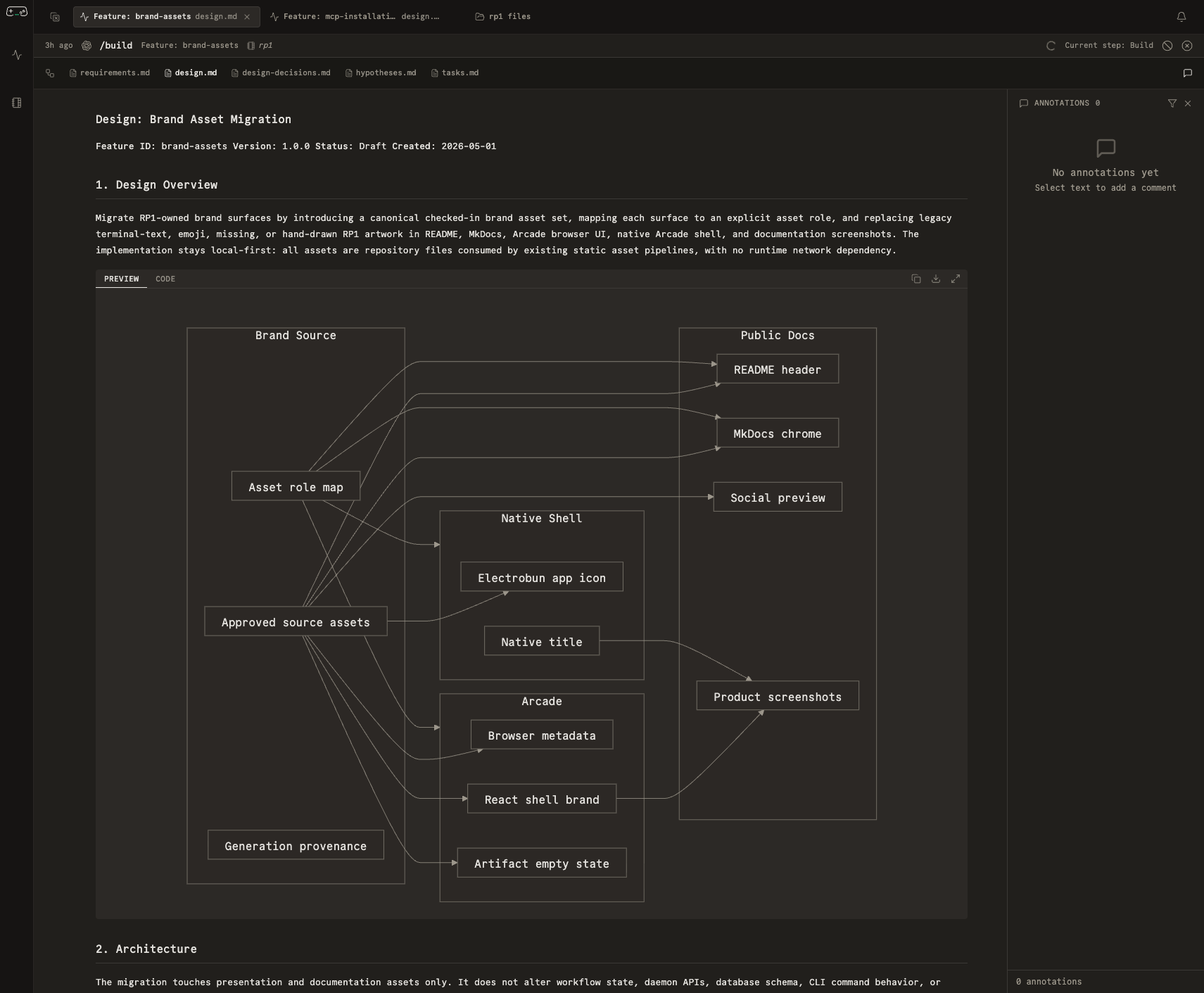
Arcade is rp1's browser workspace for monitoring tracked workflows, opening their outputs, following external links, and working through feedback while the run context stays visible.
Start Arcade
Run Arcade from any rp1 project:
By default, Arcade opens in your browser at http://localhost:7710. The project
you start from is added to the Projects view, so you can return to its runs,
files, and artifacts later.
Useful launch commands:
If the default port is already used by something else, start Arcade on another
port with --port. If the browser does not open automatically, copy the URL
printed by the command into your browser.
What To Do First
| Goal | Where to go | What to check |
|---|---|---|
| See active work | Activity | Runs marked running, waiting, or failed |
| Find decisions | Notifications drawer | Action-required and attention items |
| Inspect a run | Run detail | Current status, step list, artifacts, and messages |
| Read generated work | Artifact viewer | Requirements, designs, reviews, reports, diagrams, or diffs |
| Follow outside context | Artifact list | External links such as reviewed PRs |
| Leave feedback | Annotations | Comments, replies, resolved items, and orphaned comments |
| Switch projects | Projects | Recent runs and file browser for each registered project |
Monitor A Workflow
- Start a tracked workflow in your coding host.
- Open Arcade and use Activity to find the run.
- Open the run detail view.
- Check whether the run is running, waiting, completed, failed, cancelled, or inactive.
- Use the step list to see where the workflow is.
- Open artifacts from the right panel as they appear.
- Use notifications when Arcade shows a decision or follow-up that needs your attention.
Arcade is most useful for workflows that take more than a few seconds, produce durable artifacts, or pause for user decisions.
Respond To Waiting Work
When a workflow needs input, Arcade marks the run as waiting and may add a notification. Open the linked run, read the current message and artifacts, then answer in the host conversation that started the workflow.
Common waiting moments include:
- requirements approval
- design or plan approval
- dirty worktree decisions
- manual verification
- release readiness
- archive or follow-up choices
Read Artifacts And Links
Run details show generated files and external links together in the artifact area. File artifacts open inside Arcade. External links open outside Arcade, so reviewed PRs, issue trackers, and other web destinations stay in their original tools.
Use the artifact viewer to:
- read Markdown reports and plans
- scan headings with the outline
- inspect rendered diagrams
- view JSON, diffs, and code snippets
- add or resolve annotations on supported content
See Artifact Viewer for the full reading workflow.
Use Annotations For Feedback
Annotations attach comments to artifact text. They are useful when you want an agent or teammate to revise a specific requirement, design decision, review finding, or generated note.
Typical flow:
- Select the relevant text in an artifact.
- Add a comment.
- Continue the workflow or ask a teammate to review it.
- Reply in the annotation thread if more context is needed.
- Resolve the annotation when the issue is addressed.
If the artifact changes and Arcade cannot find the original selected text, the comment is preserved as orphaned so you can decide whether it still applies.
See Annotations for details.
Main Surfaces
| Surface | Use it for |
|---|---|
| Dashboard | Activity, filters, notifications, run details, projects, and workspaces |
| Artifact Viewer | Reading files, following links, switching views, and opening annotation tools |
| Annotations | Adding comments, replying, resolving, reopening, and handling orphaned feedback |
| Keyboard Shortcuts | Moving quickly through Activity, Projects, workspaces, and overlays |
| Settings | Adjusting Arcade preferences |